White Label
White label puts the app on your own domain under your own brand. Your clients sign in at an address like app.youragency.com, see your name, logo and colour, get emails from your brand, and never see ours. You run each client in its own workspace from the Clients page.
White label is part of the Agency and Agency Unlimited plans. On Pro, or while you are on the free trial, Settings shows a White label card with a link to Plans and Billing instead of Branding.
Champions Circle members who sign in with DM Champ already resell SDRPilot from DM Champ: add a white label with the LinkedIn outreach option in DM Champ under Settings, White labeling, then switch LinkedIn Outreach on for a client. Their White label card points there, see Resell LinkedIn outreach. The separate white label on this page, with client billing, is on the Agency plans.
Set up your brand
Open Settings and scroll to Branding.
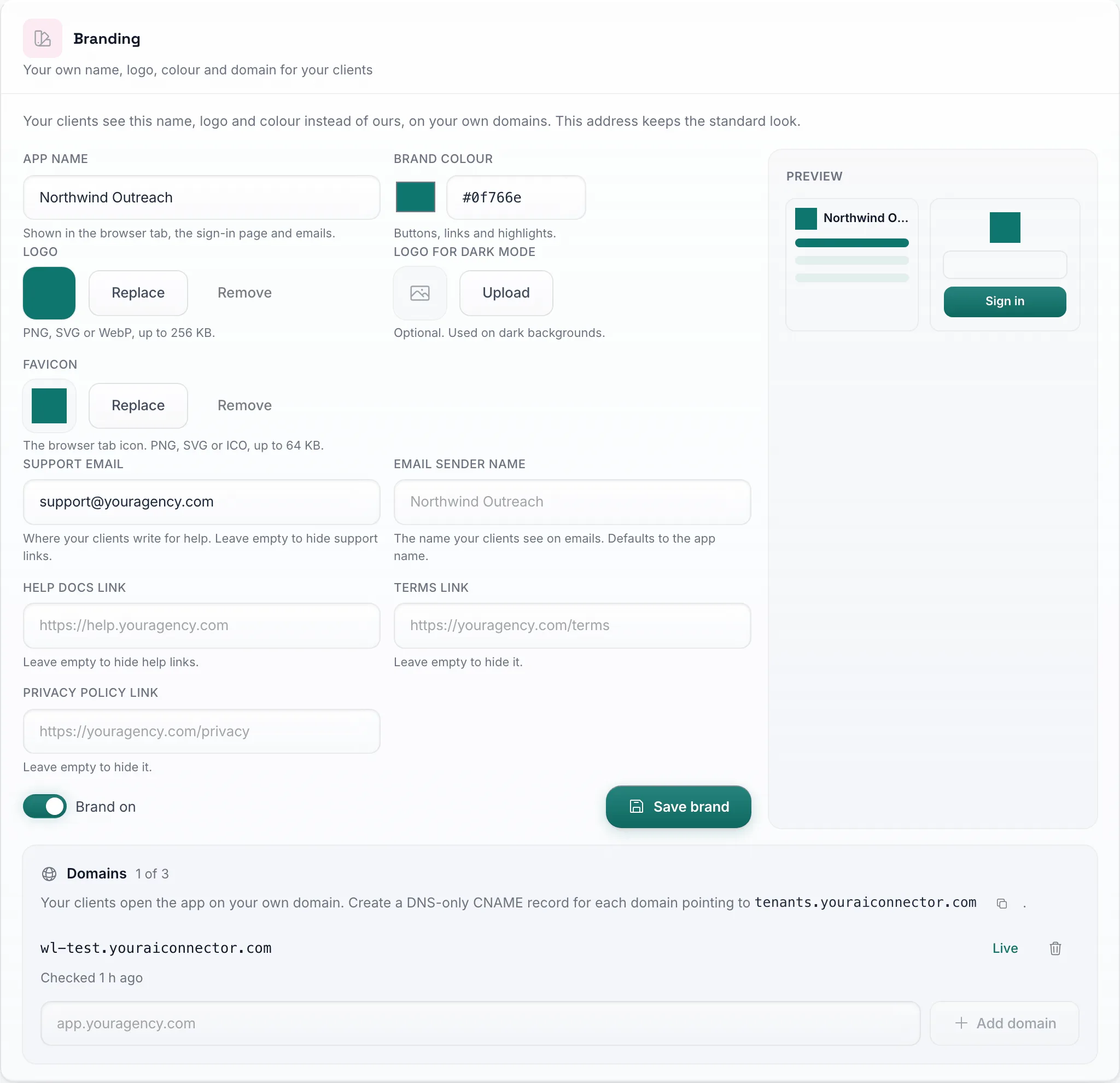
Everything you fill in here is what your clients see on your domains. The preview on the right updates as you type.
| Field | What it does |
|---|---|
| App name | Shown in the browser tab and in emails. On the sign-in page it shows only when you have no logo, or when Show the app name next to the logo on the sign-in page is on. |
| Brand colour | Used for buttons, links and highlights. |
| Logo | PNG, SVG or WebP, up to 256 KB. |
| Logo for dark mode | Optional. Used on dark backgrounds. |
| Show the app name next to the logo on the sign-in page | Off by default, because most logos already contain the name. Turn it on to show your app name under the logo on the sign-in page. |
| Favicon | The browser tab icon. PNG, SVG or ICO, up to 64 KB. |
| Support email | Where your clients write for help. Leave it empty and support links are hidden. |
| Email sender name | The name your clients see on emails. If you leave it empty, the app name is used. |
| Help docs link | Your own help site. When it is set, every help link in the app opens it. Leave it empty and your clients get these help docs under your brand instead, see Help docs host and MCP host. |
| Terms link and Privacy policy link | Your own legal pages. Each one is hidden when you leave it empty. |
Press Save brand when you are done. You have to save the brand once before you can add a domain.
The Brand on switch controls all your domains at once. When it is off, your domains show a closed page instead of the app.
Your own address on the main app keeps the standard look. The brand only applies on your own domains.
Add your domain
The Domains card sits at the bottom of the Branding panel. You can add up to 3 domains.
- Type the domain your clients will use, for example
app.youragency.com, and press Add domain. - At your domain provider, create a CNAME record for that domain pointing to
tenants.youraiconnector.com. The copy button next to the address in the Domains card copies it for you. - Make the record DNS only. If your provider offers a proxy for the record, switch it off.
- Press Check next to the domain, or wait: domains are checked again every 10 minutes.
A domain moves through these statuses:
| Status | Meaning |
|---|---|
| Waiting for DNS | The record has not been found yet. Add it at your domain provider. |
| Verified | The record is right. The secure certificate and routing are set up on the first visit to the domain. |
| Live | Your branded app is live on this domain. |
| Off | This domain is switched off and shows a closed page. |
You never have to buy or upload a certificate. It is issued automatically once the record is right.
When a check fails, the reason is shown in red under the domain:
| Message | What to do |
|---|---|
| No DNS record found yet | The record does not exist yet, or it has not spread. Changes can take a few minutes to show. |
| The CNAME record points to another address | Edit the record so it points to tenants.youraiconnector.com. |
| The domain points to an IP address | You created an A record. Replace it with a DNS only CNAME record. |
| DNS lookup failed | A temporary problem looking up the domain. Try again in a minute. |
| The certificate or routing is still being set up, or the domain did not answer yet | The record is right and the domain is being set up. It is checked again in 10 minutes. |
| The domain routes somewhere else | Something else answers on that domain. Check the record, and make sure the proxy is off. |
| The domain routes here but the brand is switched off | Turn Brand on back on and save. |
| The domain answers with a different brand | The domain is connected to a different brand. Check that you added it to the right workspace. |
To stop using a domain, press the bin icon next to it. When you have 3 domains, remove one to add another.
Help docs host and MCP host
Your clients get help docs and an AI assistant connection under your brand, with nothing to set up. Two optional hosts put them on your own domain as well:
| Host | Example | What it serves |
|---|---|---|
| Help docs host | help.youragency.com or docs.youragency.com |
These help docs with your name, logo, colour, API address and MCP address. It must start with help. or docs.. |
| MCP host | mcp.youragency.com |
The MCP endpoint for AI assistants, at https://mcp.youragency.com/mcp, under your name. It must start with mcp.. |
You can add one of each, next to your app domains in Branding; they do not count toward the 3 app domains. Set them up like an app domain: create a CNAME record pointing to tenants.youraiconnector.com, make it DNS only, then verify it in the same card.
Without these hosts, your clients still get both under your brand: the help docs on a shared neutral help address, branded for your domain, and the MCP endpoint on a shared neutral address that names no product. The Settings → API card in each workspace shows the address that applies. When you set your own Help docs link, that link wins over both help addresses.
Client workspaces
Every client gets a workspace of its own. In it, the client connects its own LinkedIn account and runs its own agent. Open Clients in the sidebar to manage them.
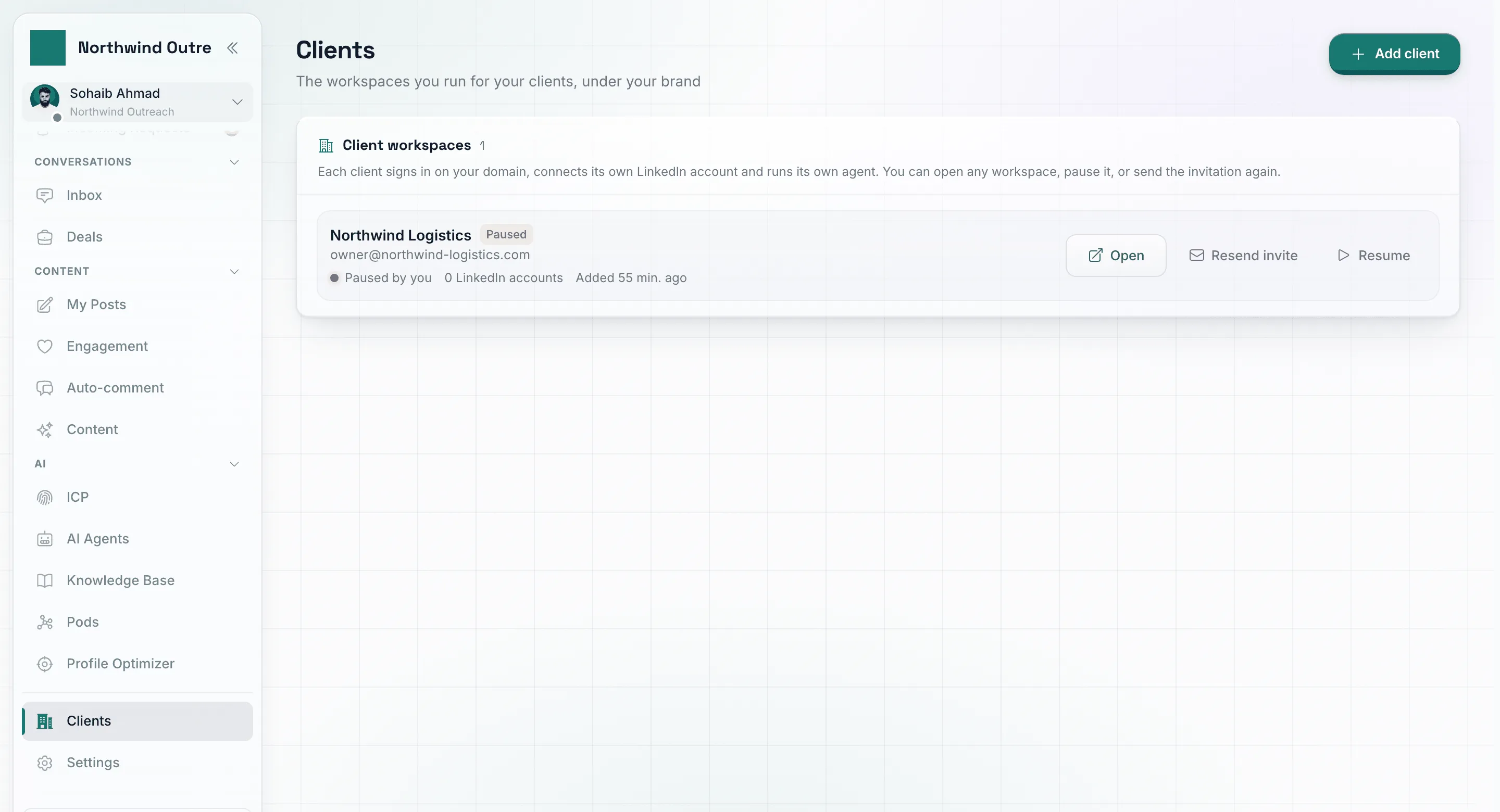
Each row shows the client's status, how many LinkedIn accounts it has connected and when it was last active.
Add a client
- Press Add client.
- Enter the Client name and the Sign-in email the client will use. It cannot be one of your own sign-in emails.
- Press Create and send invite.
The client receives an email from your brand saying their workspace is ready, with a Set your password button. The link works once and expires, so they should use it soon. After setting a password they sign in on your domain and connect their LinkedIn account. If the email gets lost, press Resend invite on the client’s row.
Open, pause and resume
- Open signs you in to the client’s workspace in a new tab, on your domain, with a one time link. Use it to set things up or check on the client. To work in a client’s workspace in the same tab, pick the client from the workspace menu at the top left of the sidebar and use Back to your workspace when you are done (see Reselling to Your Clients).
- Pause holds the workspace. Its agent stops sending and replying until you resume it. The client can still sign in and read everything, and nothing is deleted.
- Resume switches the workspace back on.
A client’s status on the row is one of Agent running, Agent paused, No agent yet, Not connected yet (no LinkedIn account connected) or Paused by you.
How many clients you can add
| Plan | Client workspaces |
|---|---|
| Pro | None |
| Agency | 10, and more can be added in Billing |
| Agency Unlimited | No limit |
The count next to Client workspaces shows how many you have used. When you reach your limit, Add client is disabled. See Plans and Billing for the price of an extra client workspace.
Client workspaces run on your plan. Clients you add here never see a bill, and if your own subscription stops, their workspaces stop too. To let clients buy a plan from you and pay you directly, see Reselling to Your Clients.
What your clients see
On your domain your clients get the full app under your brand: your name in the browser tab and the sidebar, your logo, your favicon and your colour. A few things are different from what you see on the main app:
- Sign in only. Your domain shows a sign in page and nothing else. There is no open sign up, no Google sign in and no other way in. Clients join through your invitation, or by buying one of your plans when you resell.
- One home. A client always lands on your domain. If they try to sign in somewhere else, they are sent back to it.
- No billing of yours. Your own plan and billing stay with you. A client who bought a plan from you sees only that plan, in a Billing card of its own.
- API keys and MCP for the client’s own workspace. A client can create API keys in Settings → API and connect an AI assistant, under your brand, reaching only its own workspace. You can switch this off per client on the Clients page, see Client workspaces.
- Your links only. Support, terms and privacy links appear only when you have filled them in under Branding. If they are empty, the links are not shown at all. The Help link is always there: it opens your own help site when you set one, otherwise these help docs under your brand.
- Your logo stands alone in the sidebar. At the top of the sidebar your logo shows on its own, at its full width, because most logos already contain the name. When the sidebar is collapsed, your favicon takes its place (or the first letter of your app name when you have no favicon).
- No logo? Without a logo, the sidebar shows your app name next to the first letter of your app name on a tile in your brand colour.
Branded email
Emails to your clients, such as the invitation, password resets and account notices, go out under your brand:
- The sender name is your Email sender name, or your app name when that is empty.
- They are sent from a neutral no-reply address, not from an address of ours.
- When a client replies, the reply goes to your Support email. If you have not set one, replies have nowhere to go, so set it before you invite clients.
- Your logo appears at the top when it is a PNG. With an SVG or WebP logo, the email shows your app name instead.
- Every link in the email points to your domain, and the email is signed by your team.
Reselling from DM Champ? When your LinkedIn outreach white label there has an email setup of its own (its Email sending card), these emails go out through that setup, from your own address. Without one, they use the neutral no-reply address above.
When a workspace closes
Your domains show a page saying “This workspace has closed” when:
- you turn Brand on off,
- a domain is switched off, or
- your own subscription is no longer active.
The page also notes that the app is built on SDRPilot, with a link to our plans.
Turn the brand back on, or bring your subscription back, and your domains show the app again.